Launcher
HomeActivity — the home screen that replaces the Portal's stock launcher.
A fullscreen app grid with a clock/date/weather header and an optional charge indicator (shown only on the Portal Go, which has a battery). It's designed for a landscape touchscreen and is fully navigable by remote on the Portal TV.
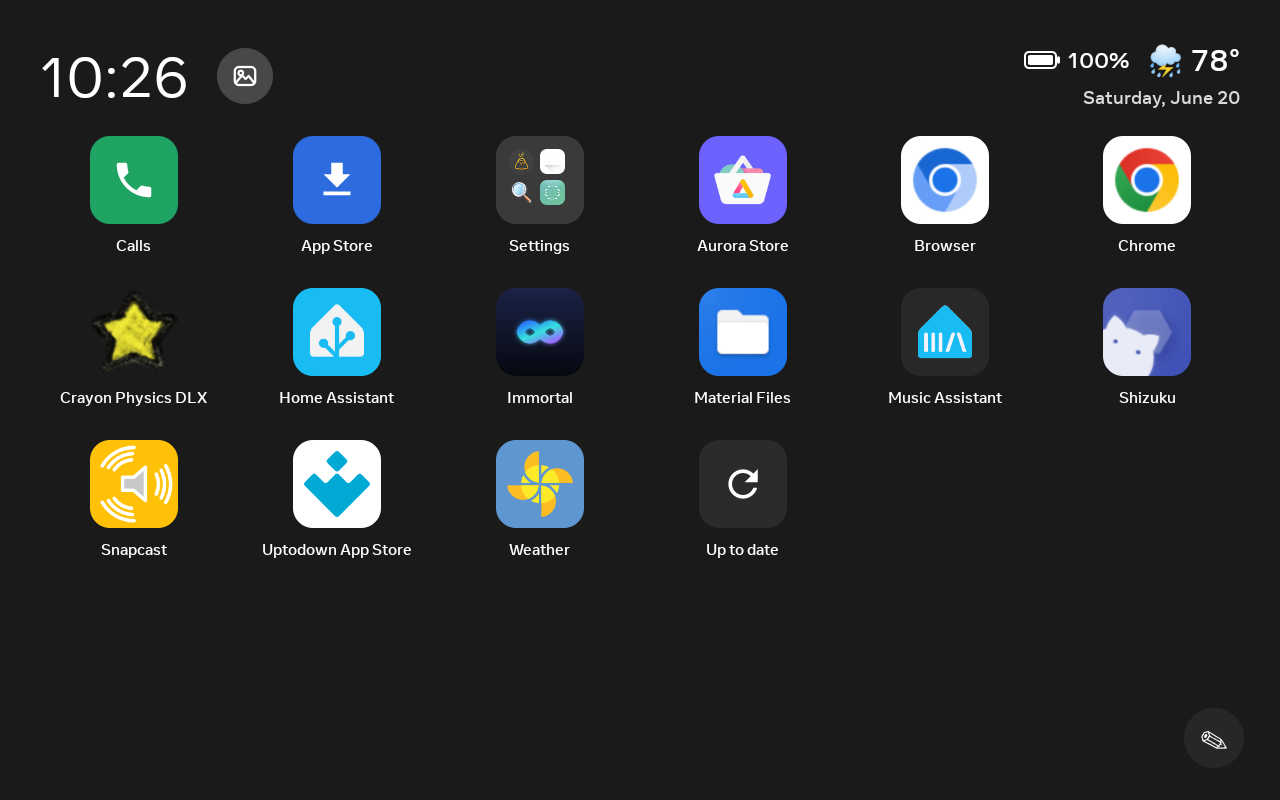
The grid
- App grid — your installed apps, fullscreen.
- Folders — in Manage mode, drag one app onto another and hold it there for a second: the app underneath outlines in white to show it's ready, and releasing makes a folder. Passing straight over an app without pausing just reorders the grid instead. Name folders, rename them, and drag apps back out, just like a phone.
- Manage mode — remove apps (tap the ✕) and organise the grid.
Header
- Clock / date / weather — weather is keyless (Open-Meteo + IP geolocation). If the detected location is wrong, pin it manually under Settings → Weather location (city search, also keyless).
- Now-playing mini-player — a compact cover-art + play/pause control that appears whenever
something is playing on the device, sourced from the device's own media session
(
NowPlayingHub). It stays out of the way when nothing's playing. See Multi-room audio & now-playing. - App switcher — a top-bar control (
AppSwitcherActivity) that lists your recently-used apps so you can hop between them without returning to the grid. - "hey" voice button — an optional mic button for push-to-talk to your voice assistant. It appears only when the companion wake-word app is explicitly enabled and installed, and is supported on first-gen Portals only — see Alexa & voice.
Tiles
- Screensaver button (top-left) — jump straight into the photo frame.
- Manage button (bottom-right) — enter Manage mode.
- Calls tile — a green tile that bridges to the stock dialer/contacts for WhatsApp and Messenger calling.
- Tools tile — opens the Tools screen: cameras, timers, notes, a converter, a reading lamp, an intercom, and more.
- Help tile — a friendly, non-technical walkthrough.
Countdown events you add in Tools → Countdowns also appear on the grid as chips
(🎂 Birthday · 12 days).
Wallpaper
The background behind the grid is a wallpaper mode you pick in Settings (WallpaperConfig):
- Dark (default) and a set of gradient presets.
- Bundled photos.
- Sky — a full-screen gradient driven by the real sunrise/sunset for your location: dawn pinks, midday blue, dusk orange, and a near-black night, refreshed through the day.
- Star field — the actual night sky for your latitude and longitude and the current time (~60 of the brightest stars, with the lines of Orion, the Big Dipper, and Cassiopeia), fading in through twilight.
- Screensaver — use your chosen screensaver as the wallpaper too.
Sounds & input
- Touch sounds — an optional soft click on taps, toggled under More features in Settings. (For chimes and spoken time, see Ambient & sound.)
- Back gesture — an optional accessibility service (
ImmortalBackGestureService) that adds a system-wide "go back" action in any app, and routes a back-to-home to Immortal's home rather than the Portal's stock launcher. Enable it from More features → Back gesture in Settings, which opens Android's Accessibility screen where you switch the Immortal service on.
Settings
ImmortalSettingsActivity is the on-device Settings screen, and every Immortal feature is reachable
from it — the screensaver and clock, sounds and the wake-light, the welcome
overlay, wallpaper, almanac packs, touch sounds,
and the back gesture. Each setting is rendered from a single declarative registry, so the same
control appears here and on the phone remote, and can never quietly drift out of sync.
Help tour
HelpActivity is a friendly, non-technical walkthrough shown on a Help tile (and once on first
launch), so anyone can pick up a revived Portal without instructions.